How to play
Online play needs your own copy of the game, its free Chapter 5 update and one setting: our DNS. The European (UCES00279) and American (UCUS98646) games both work, and they play together.
Primary DNS
165.227.128.12
Secondary 1.1.1.1 or 8.8.8.8. The same DNS as our PS3 games.
Set our DNS
- 1
Open Networking
SettingsthenNetworking
Use a PPSSPP development build from 15 October 2026 or later, the first that runs Chapter 5. PPSSPP 1.20.4 crashes at boot once Chapter 5 is installed.
- 2
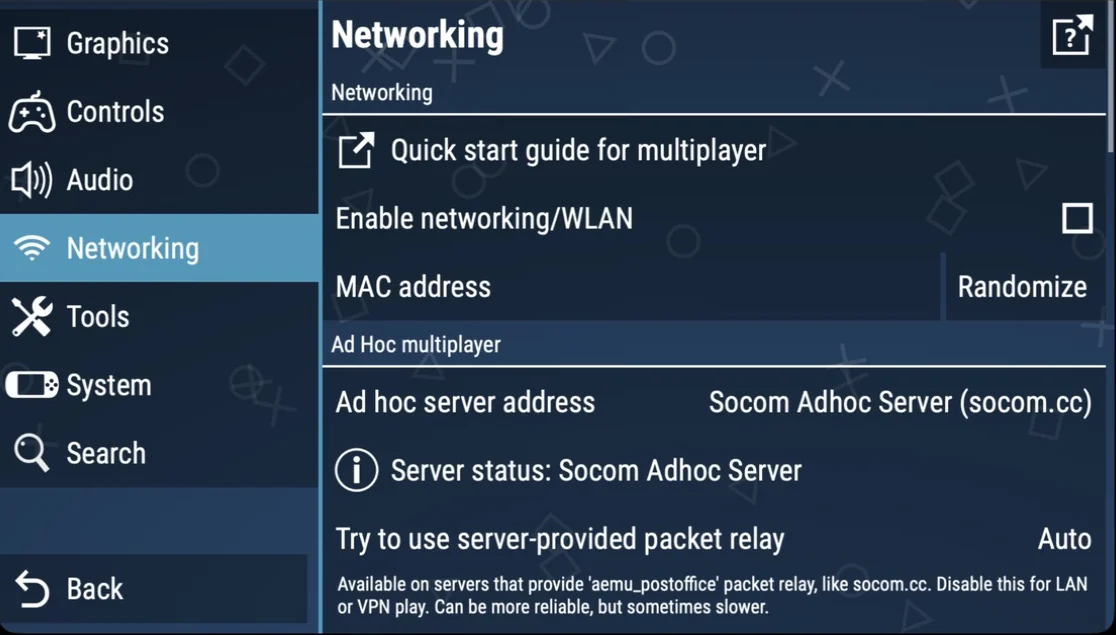
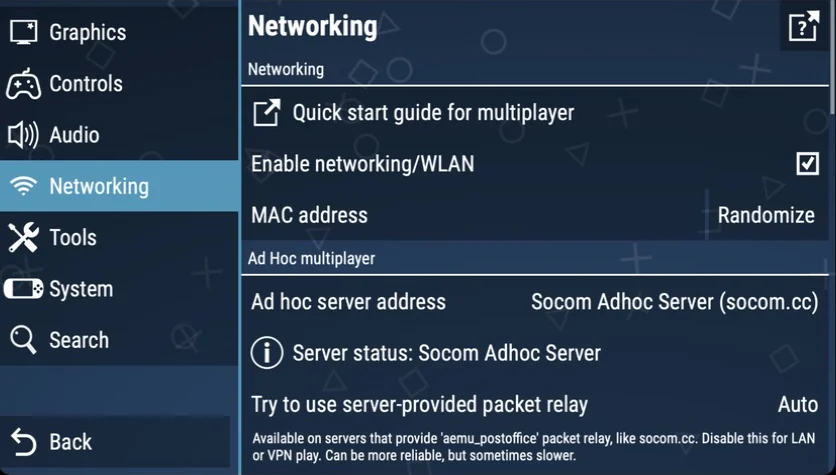
Turn networking on
- Enable networking/WLAN
- Ticked
- 3
Infrastructure: a name, no autoconfigure
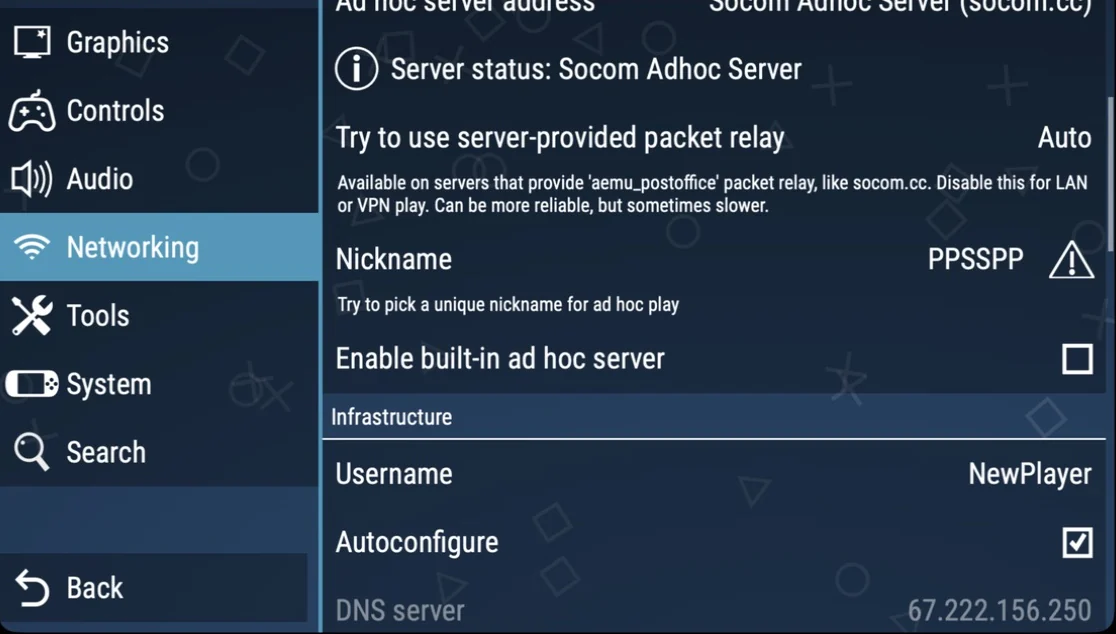
Further down, under Infrastructure: PPSSPP needs a username (any name), and Autoconfigure has to be off for your own DNS to count.
- Username
- Any name
- Autoconfigure
- Not ticked
- 4
Set our DNS
- DNS server
- 165.227.128.12
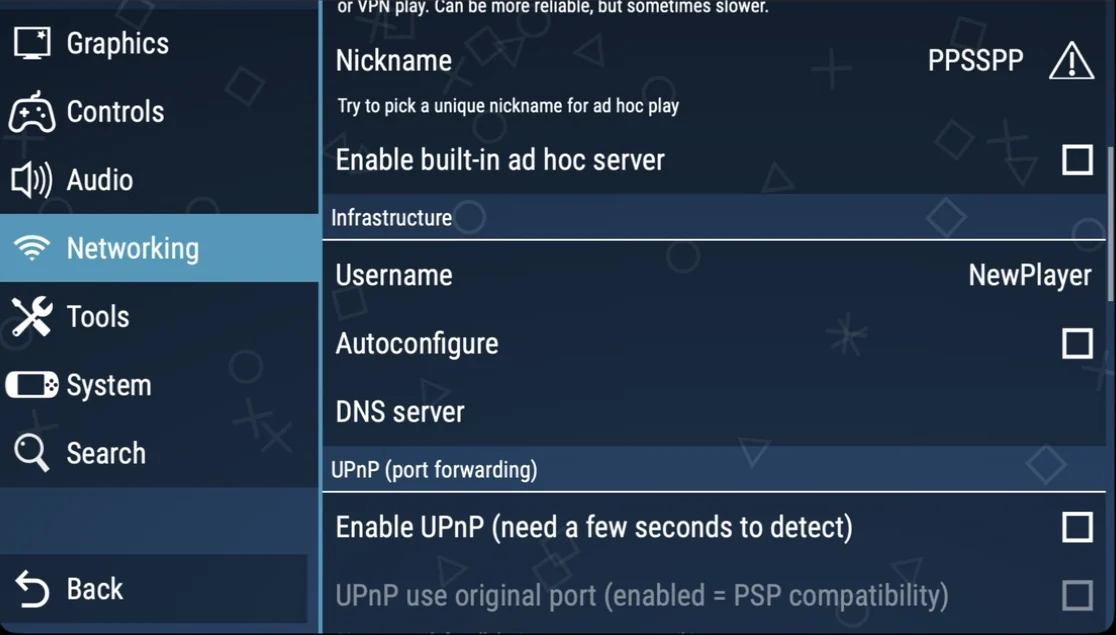 165.227.128.12
Get Chapter 5
Online play needs the game at v1.2, the Chapter 5 update. You don’t download it from here: the game fetches it itself, from its main menu’s Downloads, once our DNS is set.
- 1
Open Downloads
PPSSPP has no PSP web browser, so it shows the page’s address instead: choose Open in browser.
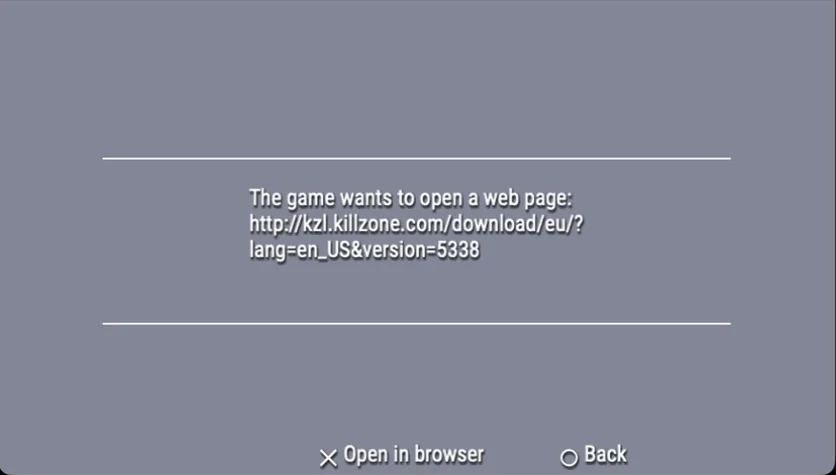
- 2
Download part 1 on your computer
The page opens in your computer’s browser, and only loads while the computer uses our DNS too: set 165.227.128.12 as its DNS server for the download, and put it back after. Download part 1, the update (8.2 MB, EBOOT.PBP).
- 3
Put it on the memory stick
Copy the file into PPSSPP’s memory stick (the folder that holds PSP/SAVEDATA):
- European game: PSP/GAME/UCES00279
- American game: PSP/GAME/UCUS98646
Start the game again: it installs the update, and the main menu shows v1.2.
- 4
Part 2 the same way
Downloads now offers part 2, Chapter 5 itself (65 MB, CHAPTER5.BIN). Open it in your browser the same way, put it in the same folder, and start the game once more.
Go online
There are five modes (Death Match, Team Death Match, Assault, Capture the Flag and Death Match Duel) and eight maps, two of them from Chapter 5: Construction Site and Prison.
- 1
Combat Zone (Online)
It’s on the multiplayer side of the Play a Game screen.
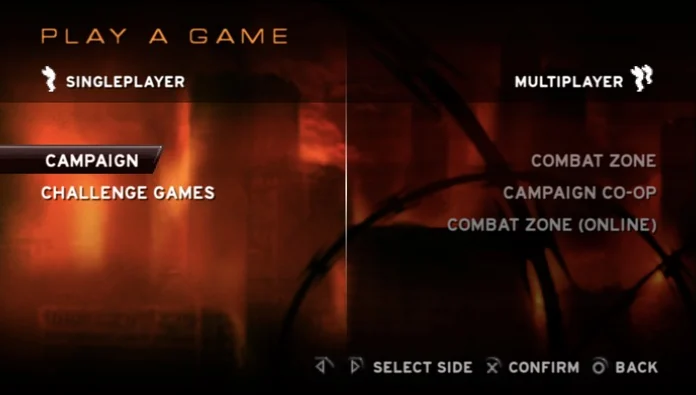
- 2
Log in
Type a handle and a password. A handle nobody has yet becomes your account, with that password: use the same one next time.
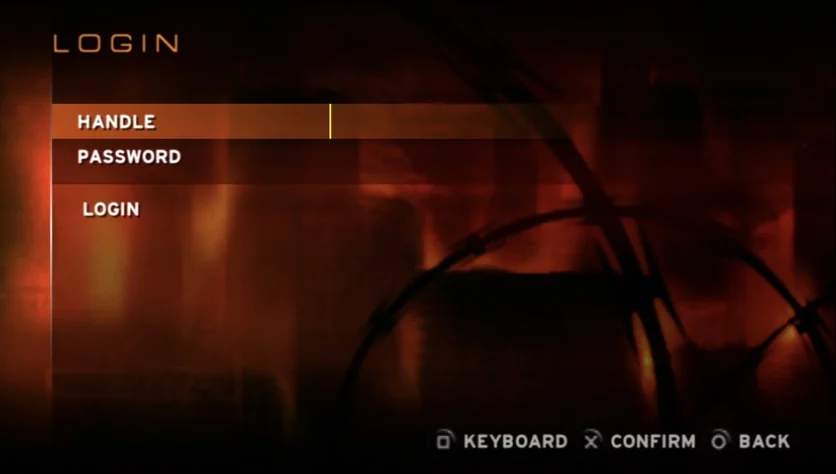
- 3
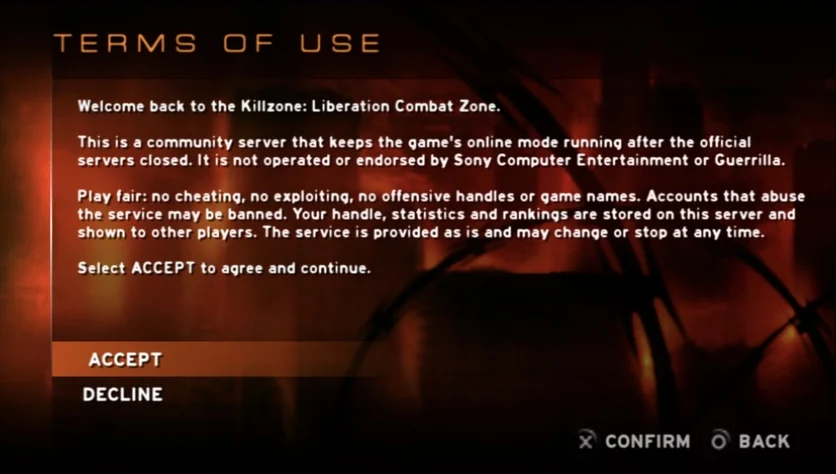
Accept the terms
They ask you to play fair, and say your handle and statistics are shown to other players. This site shows them too.
- 4
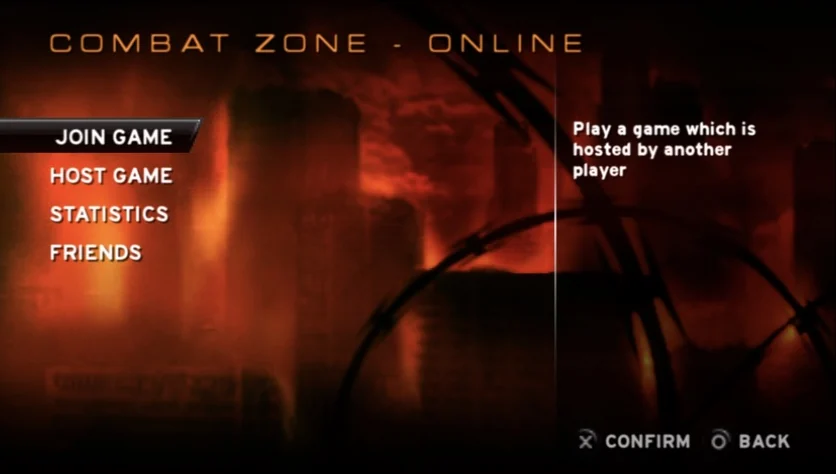
Join or host
Join Game lists the games being hosted, as this site’s Games page does. Host Game starts your own, Statistics has the leaderboards and Friends your friends and invites.
- 5
Into the round
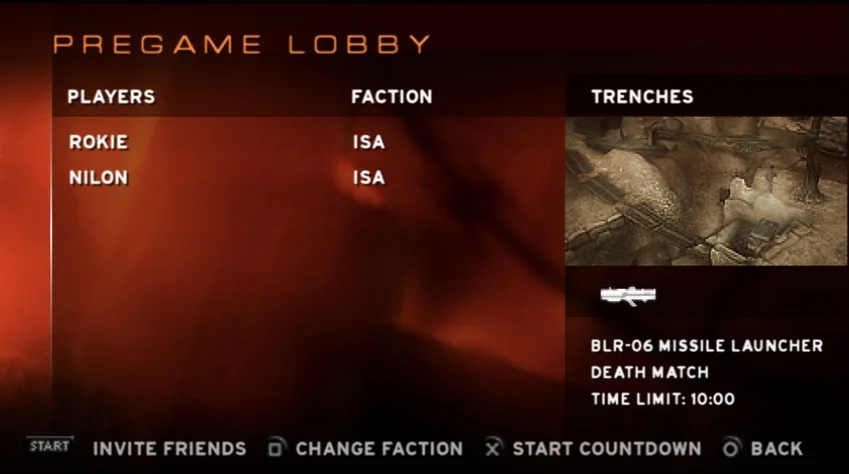
In the pregame lobby everyone picks a side, ISA or Helghast, and the host starts the countdown. Up to eight play in a game, two in Death Match Duel.