How to play
Online play needs your own copy of the game, its free Chapter 5 update and one setting: our DNS. The European (UCES00279) and American (UCUS98646) games both work, and they play together.
Primary DNS
165.227.128.12
Secondary 1.1.1.1 or 8.8.8.8. The same DNS as our PS3 games.
On a PS Vita the game runs in Adrenaline, with the PSP’s own network settings: the Vita’s built-in PSP player can’t go online. We have played full online matches on a Vita this way, with the American copy of the game.
Set our DNS
- 1
Set the Vita’s DNS
SettingsthenNetworkthenWi-Fi Settingsthenyour networkthenAdvanced Settings
- DNS Settings
- Manual
- Primary DNS
- 165.227.128.12
- Secondary DNS
- 1.1.1.1
- 2
Restart Adrenaline
Close Adrenaline and start it again. It reads the Vita’s network settings, the DNS included, only when it starts: until then the game keeps the old DNS and stops at a network error.
- 3
In Adrenaline, if the game asks
If the game asks for a connection, set one up in Adrenaline’s PSP system menu as on a PSP: Settings, Network Settings, Infrastructure Mode, the connection, Custom, then DNS Setting: Manual and our primary DNS.
Get Chapter 5
Online play needs the game at v1.2, the Chapter 5 update. You don’t download it from here: the game fetches it itself, from its main menu’s Downloads, once our DNS is set.
- 1
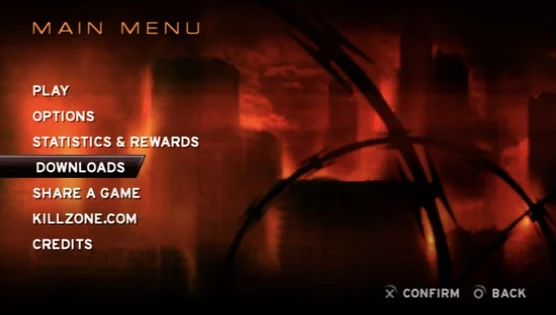
Open Downloads
The PSP’s web browser opens the update page. A game that is already on v1.2 shows it at the bottom left of the main menu.
- 2
Part 1: the update
Download part 1, the game update (8.2 MB), and leave the browser. The game installs it and starts again as v1.2.
- 3
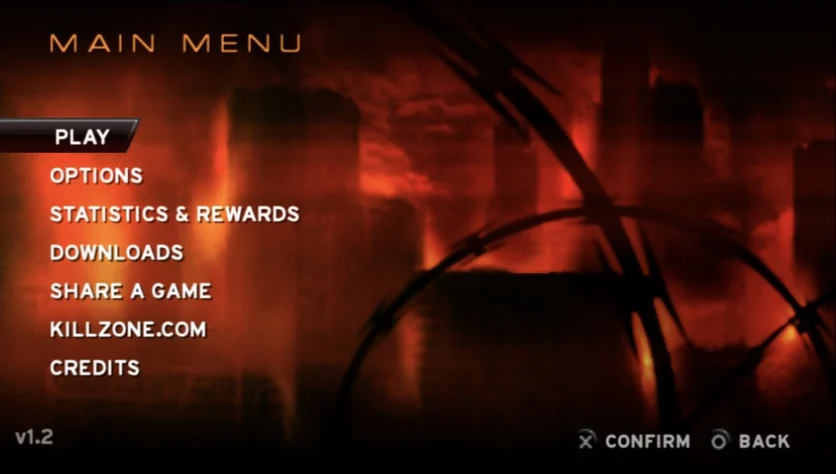
Part 2: Chapter 5
Choose Downloads again for part 2, Chapter 5 itself (65 MB). When it’s done, leave the browser: the game starts again with Chapter 5.
The update is tied to the console that installs it, so every PSP downloads its own.
Go online
There are five modes (Death Match, Team Death Match, Assault, Capture the Flag and Death Match Duel) and eight maps, two of them from Chapter 5: Construction Site and Prison.
- 1
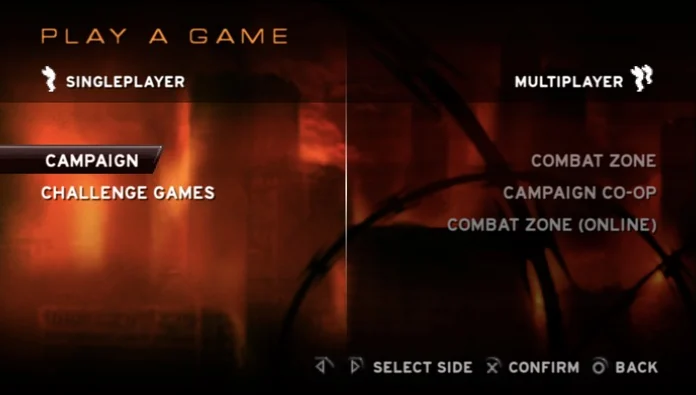
Combat Zone (Online)
It’s on the multiplayer side of the Play a Game screen.
- 2
Log in
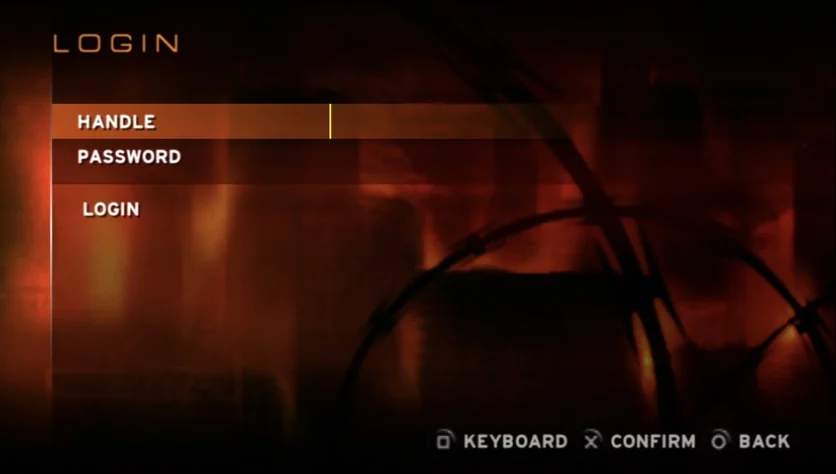
Type a handle and a password. A handle nobody has yet becomes your account, with that password: use the same one next time.
- 3
Accept the terms
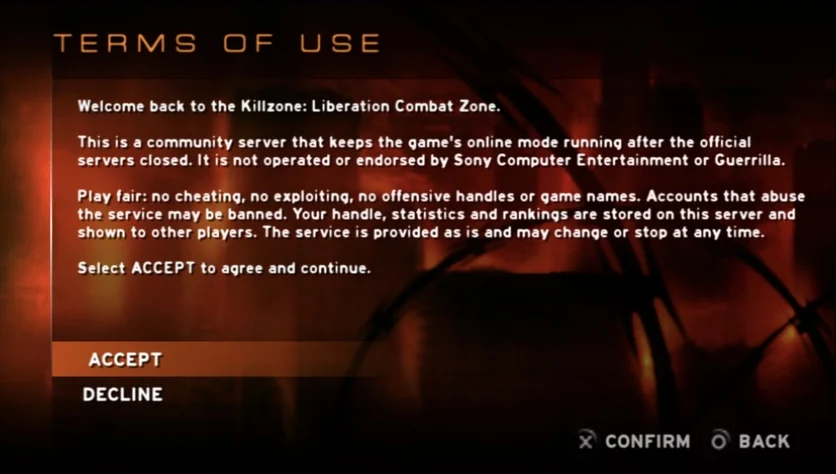
They ask you to play fair, and say your handle and statistics are shown to other players. This site shows them too.
- 4
Join or host
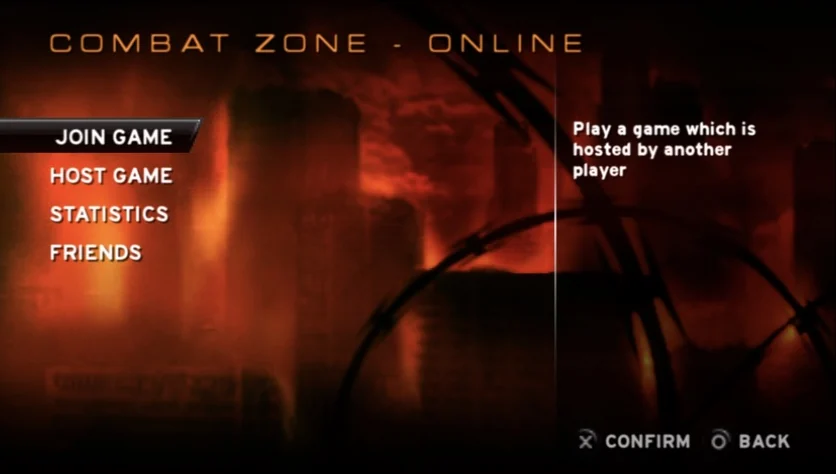
Join Game lists the games being hosted, as this site’s Games page does. Host Game starts your own, Statistics has the leaderboards and Friends your friends and invites.
- 5
Into the round
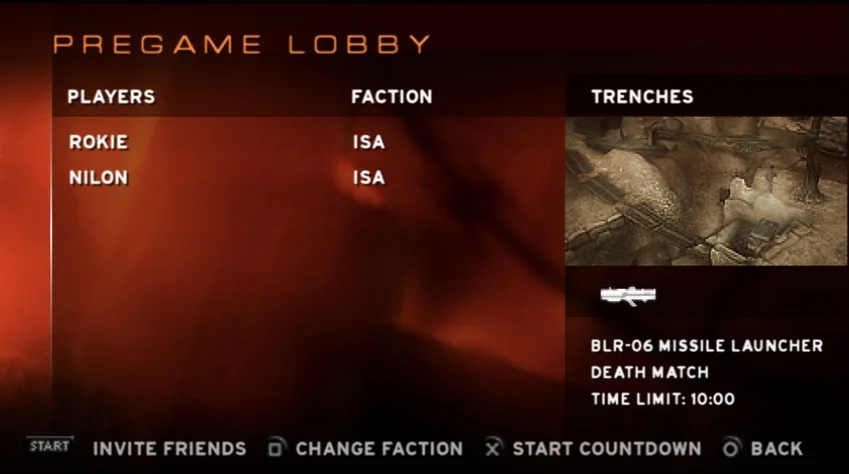
In the pregame lobby everyone picks a side, ISA or Helghast, and the host starts the countdown. Up to eight play in a game, two in Death Match Duel.